In the previous post, we had an overview on how Apache beam works. And we built a pipeline that goes through the public data of Covid19 in Google BigQuery, and it processes it. In today’s post, we will run the same pipeline in Dataflow, and see the flow and how it goes
What is Google Dataflow?
Google Dataflow is a fully managed service that simplifies and scales data processing for both streaming and batch workloads. It provides a serverless infrastructure for executing Apache Beam pipelines, enabling businesses to focus on data processing tasks rather than managing infrastructure. Dataflow’s auto-scaling capabilities ensure optimal resource utilization, while its cost optimization features help control expenses. It also integrates seamlessly with other Google Cloud services, making it a powerful tool for building comprehensive data analytics solutions.
How does it work?
Dataflow utilizes a data pipeline model, where data flows through a series of stages. These stages can encompass reading data from a source, transforming and aggregating it, and writing the processed data to a destination. Pipelines can range from straightforward to more intricate data processing tasks. For instance, a pipeline might:
- Move data directly to a destination.
- Convert data into a format more suitable for the target system.
- Combine, analyze, and augment data for insightful analysis.
- Merge data with other datasets.
An Apache Beam-defined pipeline does not specify how it will be executed. This responsibility falls on the runner, which is responsible for running an Apache Beam pipeline on a designated platform. Apache Beam offers multiple runners, including the Dataflow runner.
Let’s run our pipeline in Dataflow
Following the previous guide, we will be running the same pipeline, but this time in DataflowRunner instead of LocalRunner. You can point out to this repository for full source code.
Preparing for Dataflow Execution
First, let’s prepare for the dataflow execution by setting up our environment.
The Google Cloud CLI
First, we will need to install the Google Cloud CLI. It will help us to interact with our GCP resources. For dataflow, the CLI will be helpful for authenticating using a service account, creating flex-templates, building docker images for the GCR, and other functionalities. In this guide it won’t be much helpful since we’re keeping the guide simple, but it will be required for authenticating using the SA.
You can download it and install it from this google guide.
Service account
It’s always recommended to use service accounts for interacting with cloud resources, instead of using personal accounts. You can refer to the part I of this guide to take a look on how to setup a SA. For now, we assume that you already have your SA key.
Authenticate to GCP resources using the following command: gcloud auth activate-service-account --key-file=PATH_TO_CREDS_FILE
Enable Dataflow API
Make sure to enable the Dataflow API in your GCP project.
Submitting beam job to Dataflow
We will be using same core command of the previous guide, however, we will need to specify extra variables.
python main.py
--project gcp_project
--runner dataflow
--region europe-west3
--temp_location gs://gcs_bucket/jobs/tmp
--dataset "beam_lab"
--input "covid_input"
--output "covid_results"
--service-account-email "your_service_account@gcp_project.iam.gserviceaccount.com"
--runner dataflowspecifies dataflow as the beam job runner, which will submit the job to be executed in Dataflow--region europe-west3specifies the region where the job will be running. Full list of GCP regions can be found here--service-account-emailthe service account that will be triggering our job.
The Dataflow UI
Once the job submitted, you can monitor its execution through a graph:
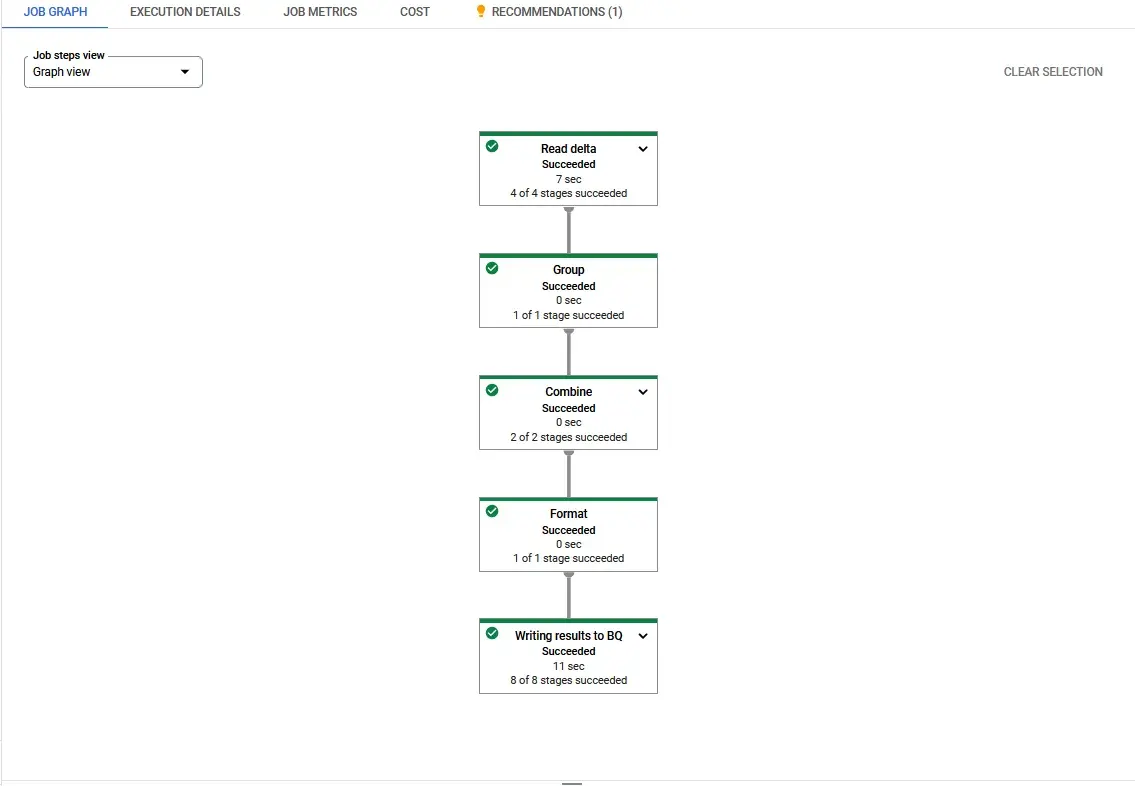
The graph representes all the ptransformations that the job is going through, if you click on a specific transformation, you can still find extra details about each execution step, such as the number of elements in the input pcollection, the nunber of elements in the pcollection, the execution time and other metrics.
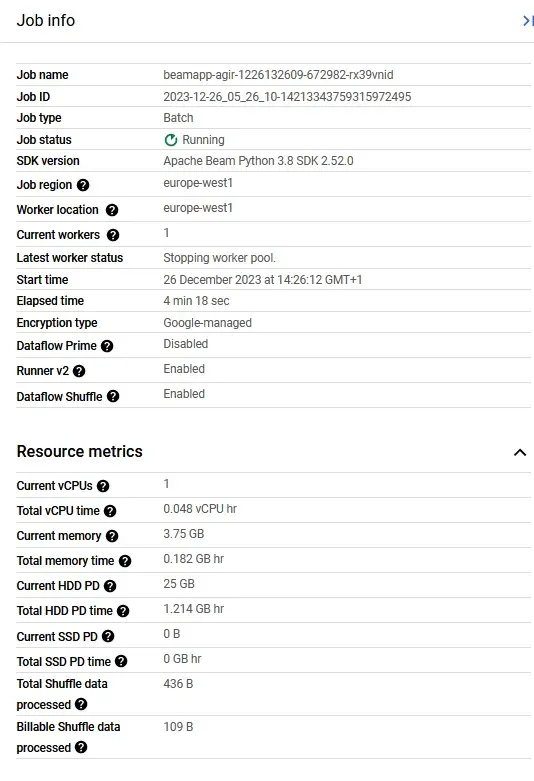
You can observe all the job info in the sidebar of the UI
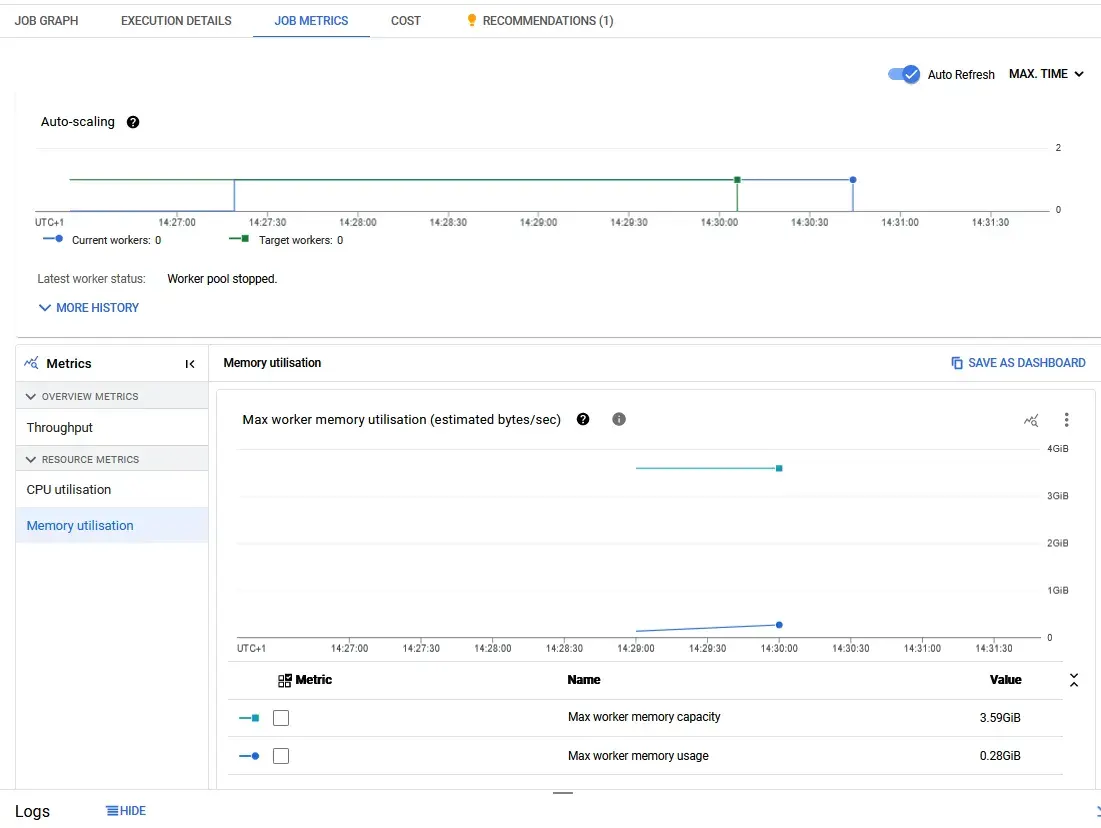
Further more, you can observe some other job metrics such as the scaling, the CPU and memory utilisations, as well as the throughput
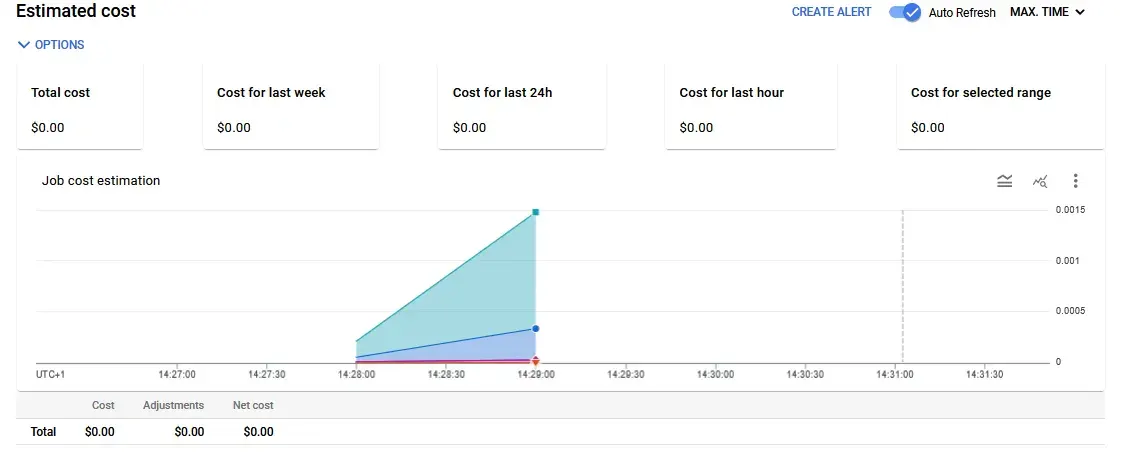
And finalyy one of the important things that you can monitor as well, is the cost. Details about dataflow pricing
Auto-scaling dataflow jobs
Scaling Dataflow jobs is like adjusting the number of people working on a task. When there’s a lot of data to process, Dataflow automatically adds more workers to handle the workload. When the data processing is done, Dataflow removes the extra workers to save resources. This ensures that Dataflow jobs run efficiently and cost-effectively.
Let’s try running same previous pipeline, but this time, instead of running our input query on 1000 elements, we will pick 10 millions input of records, and see how our dataflow job will behave.
We will be changing our input pcollection to the following code
p| 'Read delta' >> beam.io.ReadFromBigQuery(
                  query="select * from bigquery-public-data.covid19_open_data.covid19_open_data limit 10000000",
                  use_standard_sql=True)
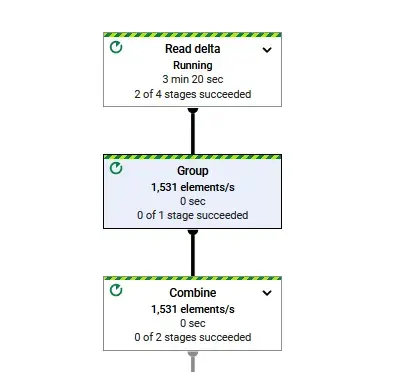
And we will re-trigger our pipeline with the same previous command. The first thing we notice in the beginning is the job will start with one worker trying to process the input elements
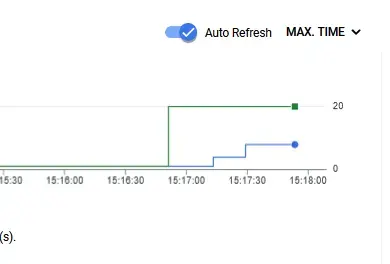
After that, dataflow will notice that the job requires more computations, so it will request to rase the workers

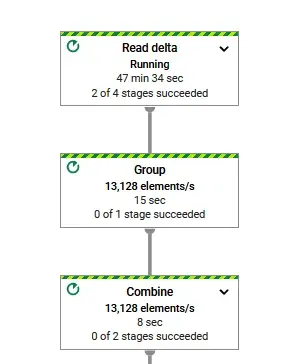
So the new graph shows that more elements are being processed per seconds
Dataflow is one of my favorite tools that, in accordance with apache beam, makes a perfect combination for parallel processing that can help run ETLs, scrapers, processors, and many type of jobs.
If you speak Moroccan Darija, I’ve had a talk in BlaBlaConf 2022, about beam and Dataflow: a perfect combination for parallel processing, feel free to check it.